
How to Check Laptop Specifications Before Buying in Nigeria (2026)
By Clarity Tech
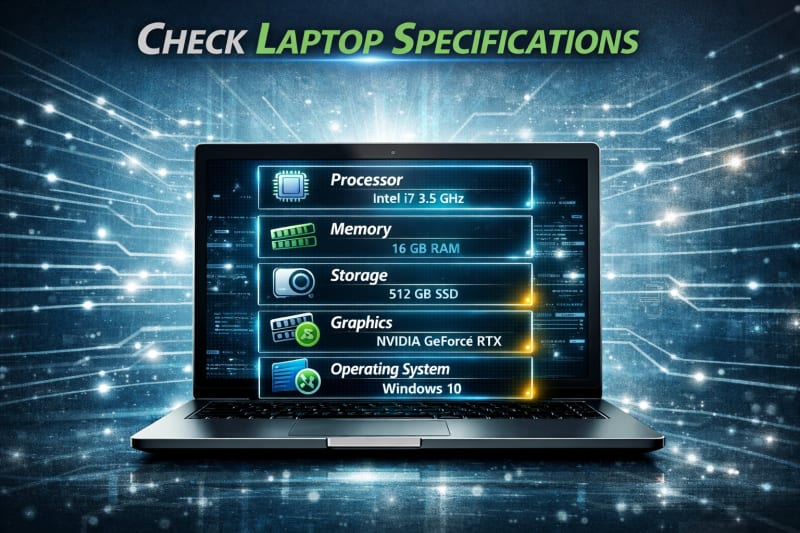
Checking laptop specifications before buying is one of the most important steps in making a smart purchase decision. A laptop may look attractive on the outside, but its internal hardware determines its actual performance and value.
In Nigeria, some buyers purchase laptops based only on the brand name, appearance, or the seller's description. This can lead to paying more for a device with older hardware, lower specifications, or performance that does not meet expectations.
Verifying the laptop specifications helps you confirm important details such as the processor, RAM, storage, graphics card, display, and other components before making payment.
This guide explains how to check laptop specifications, what each component means, and how to confirm that the laptop you are buying matches the seller's claims.
Why You Should Check Laptop Specifications Before Buying
A laptop's specifications determine its performance, speed, ability to handle tasks, and overall value. Before spending your money, checking the hardware details helps you avoid buying a device that does not meet your needs. Not to forget game lovers, here we have the Lenovo LOQ 15IAX9E Gaming Laptop for you.
Many laptop problems happen because buyers focus only on the brand or appearance without understanding the actual components inside the machine.
1. Confirm You Are Getting What You Paid For
Some sellers advertise laptops with higher specifications than the actual hardware installed.
For example, a laptop may be advertised as:
- Core i7 processor
- 16GB RAM
- 512GB SSD
but the actual device may have lower specifications.
Checking the system details ensures that the laptop matches the seller's description.
2. Choose the Right Laptop for Your Needs
Different tasks require different levels of performance.
For example:
- Basic browsing and office work require less powerful hardware.
- Programming and multitasking require better processors and more RAM.
- Video editing, graphics design, and gaming require stronger hardware.
Knowing the specifications helps you choose a laptop suitable for your work or studies.
3. Avoid Buying Outdated Hardware
Laptop technology changes quickly. Two laptops with similar names can have very different performance levels depending on their generation.
For example, newer processor generations usually offer improvements in:
- Speed
- Battery efficiency
- Performance
- Power consumption
Checking specifications helps you avoid paying too much for outdated technology.
4. Compare Price With Actual Value
Laptop prices should reflect the hardware inside the device.
By checking specifications, you can compare:
- Processor performance
- RAM capacity
- Storage type
- Graphics capability
This helps you determine whether the laptop is fairly priced.
5. Plan for Future Use
A laptop that works well today may become limiting if your needs increase.
Checking specifications helps you consider:
- Upgrade options
- Expected lifespan
- Ability to handle future software requirements
Understanding laptop specifications gives you confidence that your purchase is suitable for your needs and provides better value for your money.
How to Check Laptop Processor (CPU) Before Buying
The processor, also called the Central Processing Unit (CPU), is one of the most important components to check before buying a laptop. It affects how quickly the laptop performs tasks, handles multiple applications, and responds during everyday use.
A laptop with a powerful processor can handle demanding tasks better, while an older or weaker processor may struggle with modern software.
1. Check the Processor Brand
Most laptops use processors from two major manufacturers:
- Intel
- AMD
Both brands produce processors for different performance levels. The processor brand alone is not enough; you should also check the exact model and generation. A related article, How to Check Laptop Serial Number and Verify Authenticity in Nigeria(2026), gives more insight on protecting you from purchasing the wrong
2. Check the Processor Model
Do not rely only on labels such as:
- Core i3
- Core i5
- Core i7
- Ryzen 5
- Ryzen 7
The exact model number matters because different generations have different performance levels.
For example, an older Core i7 processor may perform similarly to or even below a newer Core i5 processor.
3. Check the Processor Generation
Processor generation indicates how recent the CPU technology is.
For Intel processors, the generation is usually shown in the model number.
Example:
- Intel Core i5-8250U → 8th generation
- Intel Core i5-1135G7 → 11th generation
For AMD Ryzen processors, the model series also provides information about the processor family and generation.
A newer generation generally provides better efficiency and improved performance.
4. Check Processor Cores and Threads
Cores and threads affect the laptop's ability to handle multiple tasks.
More cores and threads can improve performance for activities such as:
- Programming
- Video editing
- Data analysis
- Running multiple applications
5. Check Processor Speed
Processor speed is measured in gigahertz (GHz).
It indicates how quickly the processor can execute tasks. However, speed should not be considered alone because processor architecture and generation also affect performance.
6. How to Check Processor Information on Windows
You can check the processor details using Windows:
Method 1: Settings
- Open Settings.
- Go to System.
- Select About.
- Check the processor information.
Method 2: Task Manager
- Press Ctrl + Shift + Esc.
- Open the Performance tab.
- Select CPU.
You will see:
- Processor model
- Speed
- Core information
- Usage statistics
7. Compare the Processor With Your Needs
Before buying, consider what you will use the laptop for.
- Basic tasks: entry-level processors may be enough.
- Office work and multitasking: mid-range processors are usually better.
- Heavy tasks like editing and programming: choose more powerful processors.
Checking the processor ensures you understand the laptop's real performance capability before making a purchase. A related article on how to verify if a laptop is original is How to Verify Original Laptop in Nigeria Before Buying (Complete Guide).
How to Check Laptop RAM (Memory) Before Buying
RAM (Random Access Memory) is another important specification to check before buying a laptop. It affects how smoothly the laptop runs multiple applications and how well it handles everyday tasks.
A laptop with insufficient RAM may become slow when running several programs at the same time, while adequate RAM improves multitasking and overall user experience.
1. Understand What RAM Does
RAM temporarily stores data that the laptop is actively using. It allows the processor to access information quickly while programs are running.
More RAM can help with:
- Opening multiple applications
- Browsing with many browser tabs
- Running professional software
- Multitasking efficiently
2. Check the Amount of RAM
Common laptop RAM capacities include:
- 4GB RAM
- 8GB RAM
- 16GB RAM
- 32GB RAM or higher
The right amount depends on your needs.
General guide:
- 4GB: Suitable for basic tasks such as browsing and simple office work.
- 8GB: Good for most students, office users, and everyday multitasking.
- 16GB: Better for professionals, programming, design work, and heavier multitasking.
- 32GB+: Usually for advanced workloads.
3. Check RAM Type and Speed
RAM has different generations and speeds.
Common types include:
- DDR3
- DDR4
- DDR5
Newer RAM types usually provide improvements in speed and efficiency.
You can also check the RAM speed, measured in MHz.
4. Check if the RAM Is Upgradeable
Some laptops have upgradeable RAM, while others have RAM permanently attached to the motherboard.
Before buying, check:
- Number of RAM slots
- Maximum supported RAM
- Whether the current RAM can be upgraded
This is important if you plan to use the laptop for several years.
5. Verify RAM Information on Windows
To check RAM on Windows:
Method 1: System Settings
- Open Settings.
- Select System.
- Click About.
- Check installed RAM.
Method 2: Task Manager
- Press Ctrl + Shift + Esc.
- Open the Performance tab.
- Select Memory.
You can view:
- Total RAM
- Speed
- Usage
- Available memory
6. Compare RAM With the Seller's Description
Always confirm that the installed RAM matches what was advertised.
If a seller claims a laptop has 16GB RAM but the system shows 8GB, ask for clarification before buying.
Checking RAM ensures that the laptop can handle your intended workload and helps you avoid paying for specifications that are not actually included.
How to Check Laptop Storage (SSD or HDD) Before Buying
Storage is one of the most important laptop specifications to verify before purchase. It determines how much data you can store and how quickly the laptop starts, opens applications, and responds during use. We recommend Apple MacBook Pro 16-inch for its great specifications.
Many buyers focus only on storage capacity, but the type of storage is equally important.
1. Understand the Difference Between SSD and HDD
Laptops commonly use two main types of storage:
HDD (Hard Disk Drive):
- Uses mechanical moving parts
- Usually cheaper
- Provides larger storage at a lower cost
- Slower compared to SSD
SSD (Solid State Drive):
- Uses flash memory technology
- Faster startup and application loading
- More resistant to movement and shocks
- Usually more expensive than HDD
For most modern laptop users, an SSD provides a noticeably faster experience.
2. Check Storage Capacity
Common laptop storage sizes include:
- 128GB
- 256GB
- 512GB
- 1TB
The right capacity depends on how you plan to use the laptop.
Examples:
- Basic users may be comfortable with a 256GB SSD.
- Students and professionals may prefer a 512GB SSD.
- Content creators and users with large files may need 1TB or more.
3. Verify Whether the Storage Is Actually SSD or HDD
Some sellers may advertise a laptop as having SSD storage when it actually has an HDD.
To check on Windows:
Method 1: Task Manager
- Press Ctrl + Shift + Esc.
- Open the Performance tab.
- Select Disk.
Windows may display whether the drive is an SSD or HDD.
Method 2: Optimize Drives Tool
- Search for Defragment and Optimize Drives.
- Open the tool.
- Check the media type.
4. Check Storage Health
Storage condition is especially important when buying used or refurbished laptops.
Check:
- Drive health
- Errors
- Usage history
- Performance status
A failing storage drive can cause:
- Slow performance
- Data loss
- System crashes
5. Check Available Storage Space
A laptop advertised as having a specific storage capacity should show a similar amount in the system.
Remember that the usable space may be slightly lower because the operating system and system files occupy some storage.
6. Check Upgrade Options
Before buying, consider whether the laptop allows storage upgrades.
Check:
- Available storage slots
- Supported storage type
- Maximum capacity
Upgrade options can extend the laptop's useful life.
7. Match Storage With Your Needs
Choose storage based on your activities:
- Browsing and office work: smaller SSDs may be enough.
- Programming and professional work: larger SSDs are preferable.
- Video editing, photography, and content creation: higher capacity storage is recommended.
Checking storage type and capacity ensures you are not only getting enough space but also the speed and reliability you expect from your laptop.
How to Check Laptop Graphics Card (GPU) Before Buying
The graphics card, also known as the Graphics Processing Unit (GPU), is an important component to check if you plan to use a laptop for demanding tasks.
It handles visual processing and affects performance in areas such as gaming, video editing, 3D design, and graphic applications. To know if a laptop is new or refurbished, explore How to Check if a Laptop Is New, Used, or Refurbished in Nigeria.
Not every user needs a powerful graphics card, but understanding the GPU helps you choose a laptop that matches your workload.
1. Understand the Difference Between Integrated and Dedicated Graphics
Laptops usually come with one of two types of graphics:
Integrated Graphics:
Integrated graphics are built into the processor and share system memory with the CPU.
They are suitable for:
- Web browsing
- Office applications
- Online classes
- Basic photo editing
- Video playback
Dedicated Graphics:
Dedicated graphics have their own memory and provide higher performance.
They are better for:
- Video editing
- 3D modelling
- Advanced graphic design
- Gaming
- Professional creative work
2. Check the GPU Brand and Model
Common laptop graphics brands include:
- Intel
- AMD Radeon
- NVIDIA GeForce
Do not rely only on the brand name. The exact GPU model determines performance.
For example, different NVIDIA GeForce models can have significant differences in capability.
3. Check Graphics Memory (VRAM)
Dedicated graphics cards have their own memory called VRAM.
Higher VRAM can improve performance for graphics-intensive tasks.
Common VRAM sizes include:
- 2GB
- 4GB
- 6GB
- 8GB or more
The required amount depends on your workload.
4. How to Check GPU Information on Windows
Method 1: Task Manager
- Press Ctrl + Shift + Esc.
- Open the Performance tab.
- Select GPU.
You can see:
- GPU model
- Usage
- Dedicated memory
- Shared memory
Method 2: DirectX Diagnostic Tool
- Press Windows + R.
- Type dxdiag.
- Press Enter.
- Open the Display tab.
You will find graphics information there.
5. Compare the GPU With Your Intended Use
Choose a graphics card based on what you need:
- Basic use: Integrated graphics are usually sufficient.
- Design and light editing: Better integrated graphics or entry-level dedicated GPUs may work.
- Professional editing, 3D work, and gaming: A stronger dedicated GPU is recommended.
6. Watch Out for Misleading Graphics Claims
Some sellers may advertise laptops using general terms like:
- "High graphics"
- "Gaming laptop"
- "Powerful graphics"
Always verify the exact GPU model instead of relying on marketing descriptions.
Checking the graphics card ensures that the laptop has the visual processing power required for your work and prevents you from paying for performance that the device cannot deliver.
How to Check Laptop Screen and Display Specifications Before Buying
The laptop display is one of the components you interact with most, yet many buyers overlook it when checking specifications. A good screen improves productivity, entertainment, and creative work, while a poor display can affect your overall experience.
Before buying a laptop, verify the screen size, resolution, panel type, refresh rate, and physical condition.
1. Check the Screen Size
Laptop screens come in different sizes, commonly:
- 11 to 13 inches: More portable and lightweight
- 14 inches: Balanced option for portability and productivity
- 15 to 16 inches: Better for work, entertainment, and creative tasks
- 17 inches and above: Suitable for users who prefer larger displays
Choose a screen size based on how you plan to use and carry the laptop.
2. Check the Display Resolution
Resolution determines how sharp and detailed images appear.
Common resolutions include:
- HD (1366 × 768): Basic display quality
- Full HD (1920 × 1080): Clearer and more common on modern laptops
- 2K/QHD: Higher detail for professional use
- 4K UHD: Very high resolution for advanced creative work
A higher resolution usually provides a sharper viewing experience.
3. Check the Panel Type
Different display panels offer different advantages.
Common types include:
TN panels:
- Often cheaper
- Faster response times
- Narrower viewing angles
IPS panels:
- Better colour accuracy
- Wider viewing angles
- Popular for design and professional work
OLED panels:
- Excellent contrast and colours
- Common in premium laptops
4. Check the Refresh Rate
Refresh rate is measured in Hertz (Hz) and indicates how many times the screen updates per second.
Common refresh rates include:
- 60Hz for everyday use
- 90Hz, 120Hz, or higher for smoother motion
Higher refresh rates are useful for gaming and some professional applications.
5. Test the Screen Condition
When buying a used or refurbished laptop, inspect the display